Authentication
You must authenticate before the Gemini agent can process your requests. The plugin supports three ways to configure authentication.
Terminal Authentication (Recommended)
This is the most straightforward method for individual users. Run the gemini command in your system terminal:
gemini
Once inside the Gemini prompt, type /auth and follow the instructions to log in with your Google account. This uses OAuth to securely store your credentials on your local machine.
API Key
If you prefer using a static API key:
- Obtain an API key from Google AI Studio.
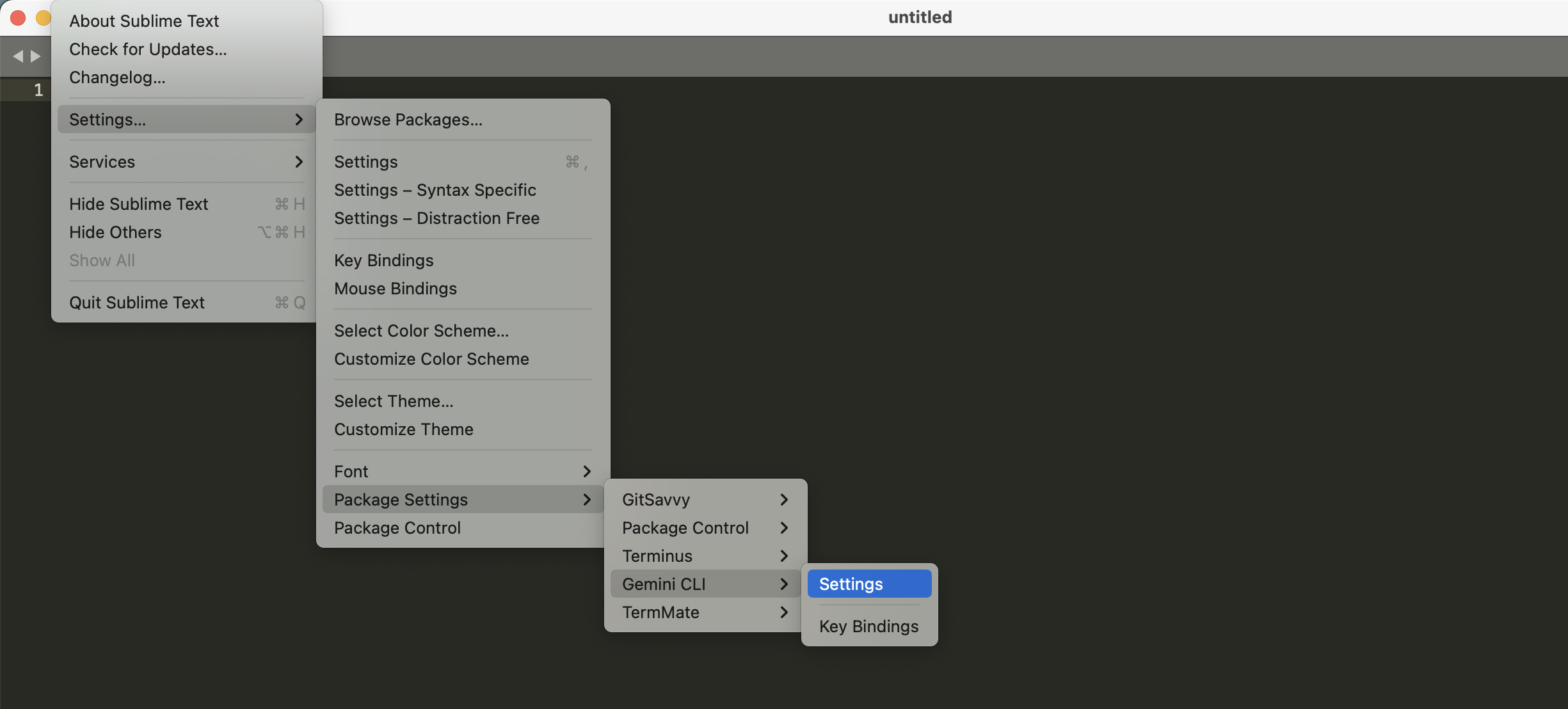
- In Sublime Text, go to
Preferences -> Package Settings -> GeminiCLI -> Settings. - Add your key to the configuration:
{
    "api_key": "YOUR_GEMINI_API_KEY"
}
Google Vertex AI (Enterprise)
For enterprise users on Google Cloud Vertex AI, you can configure your project details in the env section of your settings:
- Ensure you have authenticated via the Google Cloud CLI:
gcloud auth application-default login.
gcloud auth application-default login
- Update your
GeminiCLI.sublime-settings:{ "env": { "GOOGLE_CLOUD_PROJECT": "your-project-id", "GOOGLE_CLOUD_LOCATION": "us-central1" } } - Make sure your Google Cloud project has the Vertex AI API enabled.