Quickstart
Ready to start your first interaction with Gemini? Follow these steps to get up and running in minutes.
Start your first Chat
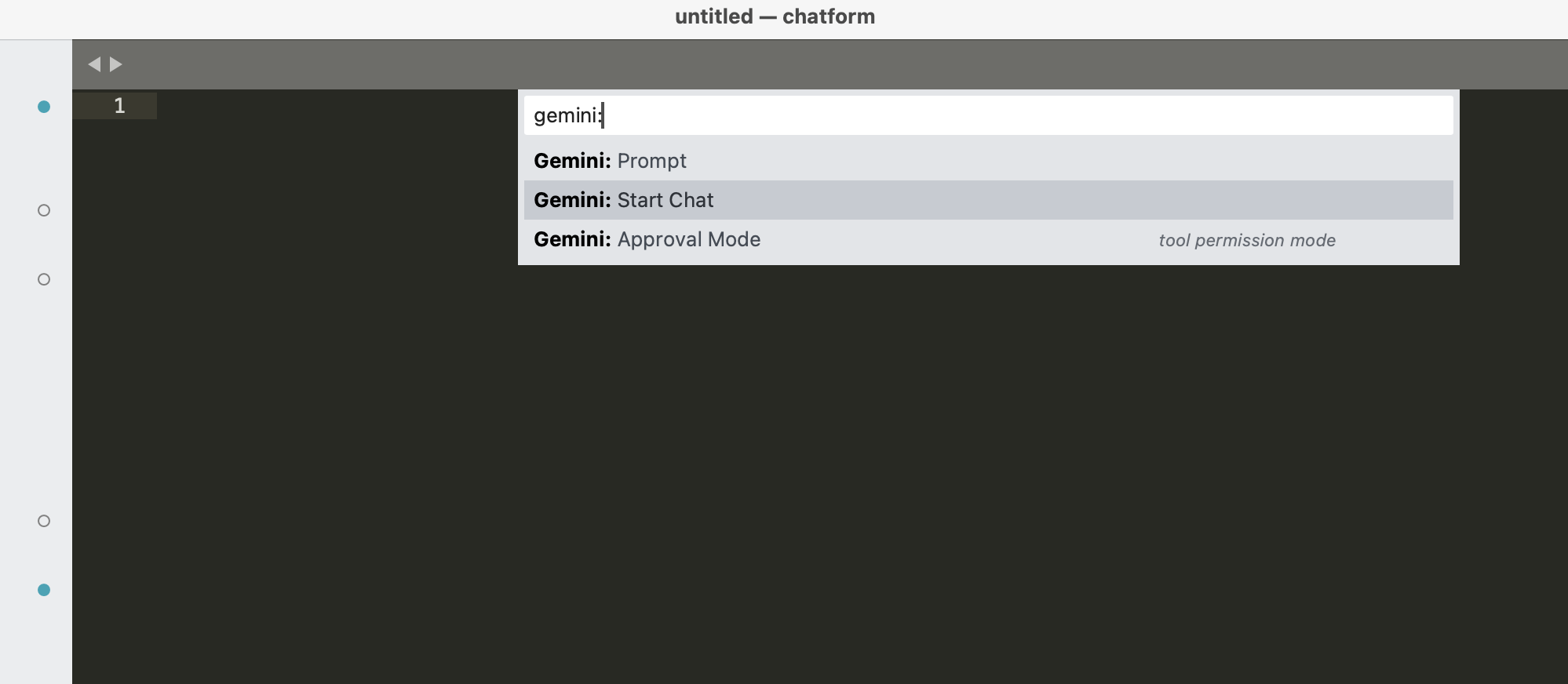
- Open the Command Palette (
Cmd+Shift+Pon macOS,Ctrl+Shift+Pon Windows/Linux). - Search for
Gemini: Start Chatand pressEnter. - A new chat view will open with a
gemini-chattab.
Send a Message
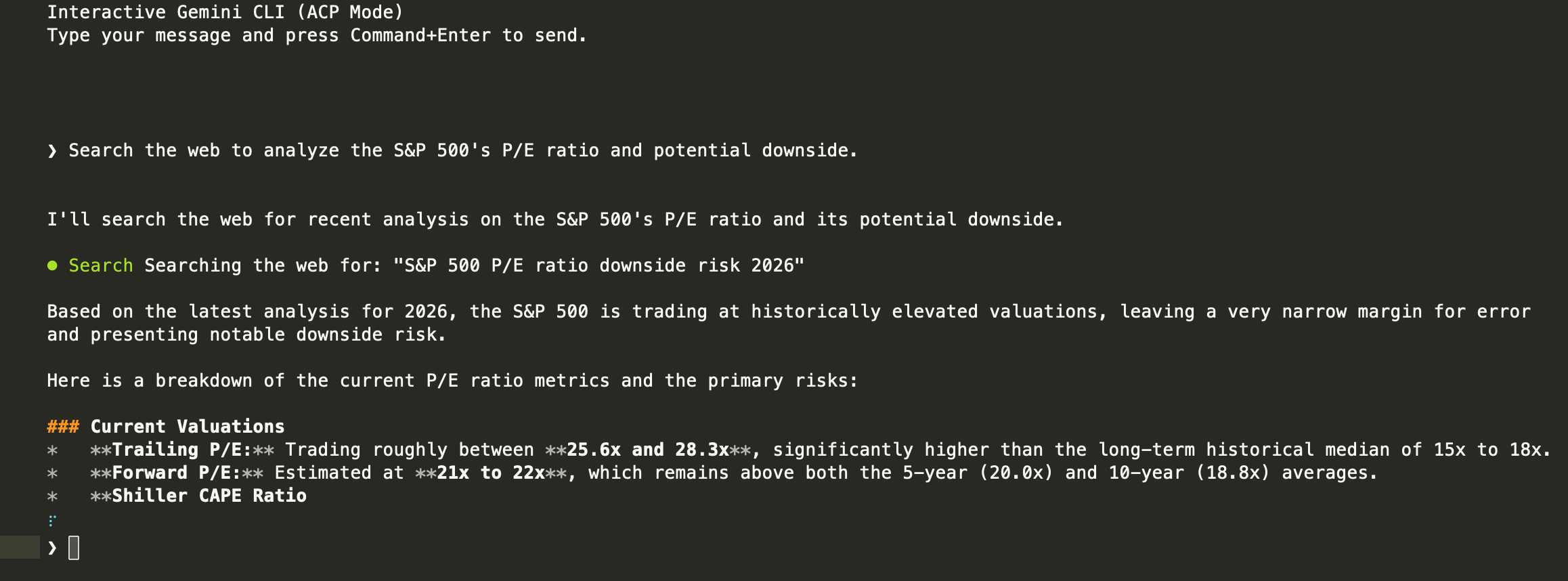
- Type a question or instruction at the bottom of the view prefix with
❯.- Example: “Explain the structure of the current project.”
- Press
Ctrl+Enter(macOS:Cmd+Enter) to send. - Gemini will begin “thinking” and eventually respond.
Interact with Files
Try mentioning a file to give Gemini context:
- Type: “What does this file do? @index.md”
- The plugin will automatically detect
@index.mdand include its content in the request.
Grant Permissions
If Gemini needs to perform an action (like reading a file it wasn’t given, or listing a directory), you will see a permission prompt.
- Click Allow (or press the corresponding key) to let it proceed.
- Click Deny if you want to block the action.
Review and Apply Changes
If you ask Gemini to modify code, it will present a diff.
- Review the proposed changes.
- Click Apply to write the changes to your file.